Available on Chrome Web Store
REQUIRES MetaMask or similar wallet extension already installed. Install the extension directly from the Chrome Web Store for automatic updates. Manual installation instructions are available below as an alternative.
This is NOT a Cryptocurrency Wallet
This extension is an authentication bridge that connects your existing wallet (MetaMask, Brave Wallet, etc.) to Crypto Trading Journal for passwordless sign-in. It does NOT store private keys, send/receive crypto, or provide wallet functionality. You must have MetaMask or another EIP-1193 compatible wallet extension already installed.
Before You Begin
Make sure you have these ready
Chromium Browser
Chrome, Brave, Edge, or Opera. Any Chromium-based browser will work perfectly.
Web3 Wallet (REQUIRED)
MetaMask required (or Brave Wallet, Coinbase Wallet, Rabby). This extension cannot work without an existing wallet extension — it's an authentication bridge, not a standalone wallet.
5 Minutes
The entire setup process is quick and straightforward. No technical expertise required.
Install the Extension
Get it from the Chrome Web Store for automatic updates
Manual Installation Guide
Alternative: follow these steps if you prefer to install from the ZIP file
Select your browser — instructions will update automatically
📂 Extract the ZIP File
Unzip the downloaded file to a permanent location on your computer.
Documents/crypto-web3-extension. The browser loads the extension from this folder — if you delete it, the extension stops working.
🔧 Open the Extensions Page ← Changes by browser
Open your browser and type chrome://extensions in the address bar, then press Enter.
🔓 Enable Developer Mode
Find the "Developer mode" toggle in the top-right corner of the extensions page and turn it ON.
This reveals additional options including "Load unpacked" which we'll use next.

📦 Load the Extension
Click the "Load unpacked" button that appeared after enabling Developer Mode.
Navigate to and select the folder where you extracted the ZIP (the folder containing manifest.json).
📌 Pin the Extension
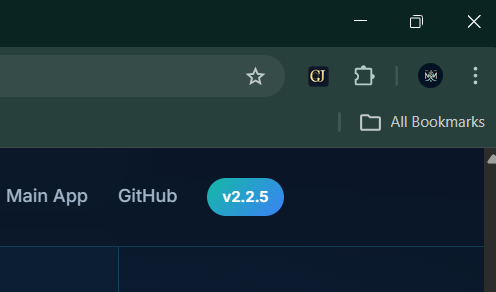
Click the puzzle piece icon 🧩 in your browser toolbar to see all extensions.
Find "Crypto Trading Journal - Web3 Auth" and click the pin icon to keep it visible in your toolbar for easy access.
🎉 You're All Set!
The extension is now installed and ready to use.
Visit cryptotradingjournal.xyz and click "Connect Wallet" to authenticate with your Web3 wallet.
Frequently Asked Questions
Solutions to common issues
Where can I install the extension?
The extension is available on the Chrome Web Store. Installing from CWS gives you automatic updates. Manual installation via ZIP is available as an alternative above.
"Wallet not detected" error
This extension is an authentication bridge — it requires an existing wallet extension like MetaMask to work. Make sure:
- MetaMask (or similar) is installed and enabled
- Your wallet is unlocked
- You're on the correct network
"Load unpacked" button not visible
The "Load unpacked" button only appears when Developer mode is enabled. Look for the toggle switch in the top-right corner of the extensions page and make sure it's turned ON.
Extension disappears after browser restart
This happens if you deleted or moved the extracted folder. The browser loads the extension directly from that folder location.
Solution: Re-extract the ZIP to a permanent location and load it again.
How do I update the extension?
Since this is a manual installation, updates aren't automatic. To update:
- Download the latest version from this page
- Extract it to the same folder (overwrite existing files)
- Go to
chrome://extensions - Click the refresh icon (🔄) on the extension card
Is this extension safe to use?
Yes. This extension:
- Never accesses your private keys or seed phrase
- Only requests signatures for authentication (like signing a message)
- Is open source — you can review the code on GitHub
- Only communicates with cryptotradingjournal.xyz
"Cannot redefine property: ethereum" console error
This is a known conflict that occurs when multiple wallet extensions try to inject their provider. It's harmless and doesn't affect functionality — the extension will still work correctly.